
Overview
Activities are records where the interactions with contacts, organisations, projects and programs are recorded. They allow you to:
- Keep track of costs and time spent
- Log outcomes and see the impact they have
- Link a prior activity
- Add follow-up tasks and schedule actions to be completed at a later date
For more details on activities see our User Guides.
Activity Types
There are a range of activity types available to select from, and the fields available in the activity depend on the activity type selected.










** New update activities are displayed in the Updates sidebar.
Activity Summary Card
Activities are displayed as summary cards in the Activity Feed.
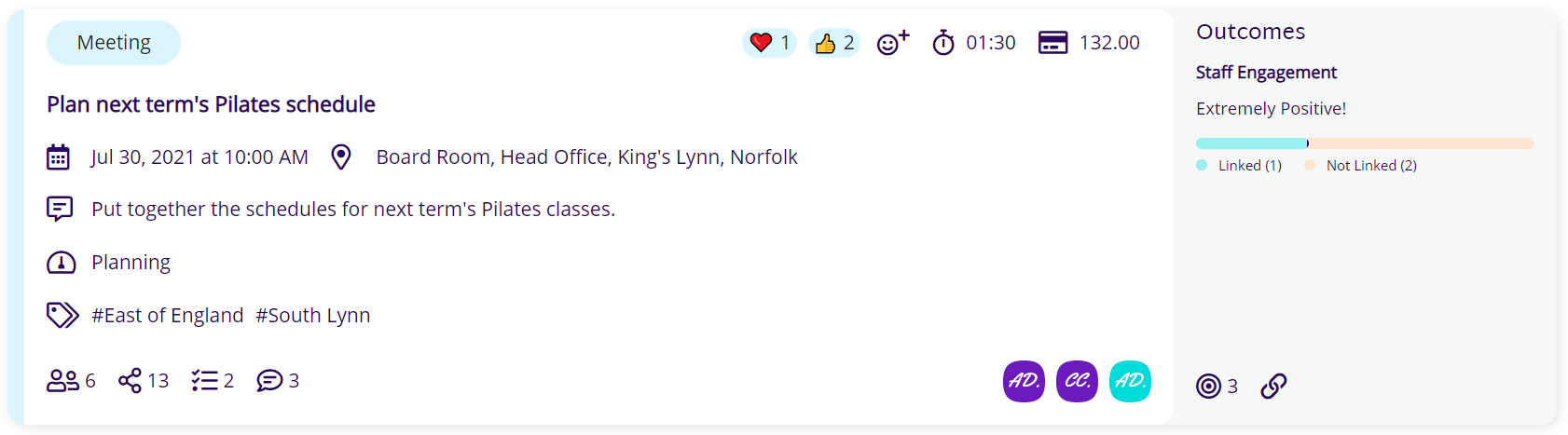
Key to Activity Icons
| Symbol | Description |
|---|---|
 | Colour-coded activity type |
 | Add activity type |
| Summary | Activity title |
 | Date and time of activity |
 | Location / Platform / Meeting Link |
 | Description of activity |
 | Status of activity |
 | Added tags |
 | No. of Attendees/Recipients |
 | Add Attendees/Recipients/Collaborators |
 | No. of shares – the activity is displayed on these additional activity feeds |
 | No. of follow-up tasks |
 | No. of comments |
  | Activity collaborators |
 | Who the activity was created by |
Visual Representation of Outcomes | – Linked (#): Number of associated Strategic Aims this activity has impacted – Not Linked (#): Number of associated Strategic Aims which are unchanged by this activity |
 | No. of activity outcomes |
| Outcomes Category Score | Outcomes Strategic Aims this activity has impacted Statement for each strategic aim selected |
 | There is no prior activity linked to this activity |
 | There is a prior activity linked to this activity |
      | Reactions to the Activity |
 | Add a reaction |
 | This activity is visible to all users (default) |
 | This activity is only visible to the selected team/s, collaborators and creator |
 | Activity has not been pinned |
 | Activity is pinned to the top of the feed |
 | Total time spent on this activity |
 | Log time spent against this activity |
 | Total costs added to this activity |
 | Add costs to this activity |
 | Linked resources |
 | Save activity (enabled) |
 | Save activity (disabled) |
 | Menu |
 | Delete |
 | This activity will be displayed on the homescreen activity feed (default) |
 | This activity will not be displayed on the homescreen activity feed |
Log New Activity
There are two ways to log an activity:
- Activity Summary Card
- Activity Sidebar
For more details on how to log a new activity see our User Guides.
Edit Existing Activity
To edit an activity:
- Click on the activity in the activity feed.
- The activity is displayed in the sidebar.
- Make the required changes and click on .
- The updated activity is saved.
Delete Existing Activity
To delete an activity:
- Click on the activity in the activity feed.
- The activity is displayed in the sidebar.
- Click on .
- The menu is displayed.
- Click on .
- Confirm delete by clicking on

- The Activity is deleted.